Help Centre
Showing all help topics.
Creating, Editing, Archiving And Deleting Habits
Create A Habit
Tap Add Habit, enter a clear action name, choose Personal or Business, select its time of day, colour, frequency and schedule, then save it. A note is optional.
Edit A Habit
Open All Habits or use Edit on a Today card. Change the existing habit and tap Save Changes.
Archive A Habit
Archiving removes a habit from active views without immediately destroying its history. Open Archived Habits at the top of All Habits to restore it or delete it permanently.
Delete Permanently
Permanent deletion is available from Archived Habits. If the habit has history, Habit Trackd warns that deletion changes statistics and removes it from linked routines and goals. This cannot be undone.
Frequencies, Days, Times And Durations
Every Day
The habit is due every day. Leave the schedule empty for a simple daily check-in or add one or more times.
Once A Week
Select the weekday when it should be due, then add its time or times.
Every N Days
Choose the interval that fits the habit. It becomes due according to that interval instead of being treated as daily.
Selected Days
Choose any combination of weekdays. Where day-specific scheduling is available, selected days can have different times.
Multiple Times
Use Add Time for more than one occurrence. Each occurrence has its own check-in, and the day is complete when all due occurrences are finished.
Duration
Select a preset or custom duration. It controls the calendar block length and contributes to the total routine time.
Personal And Business Areas
Habits, routines and goals can belong to Personal or Business. All shows both. Personal shows only Personal items, and Business shows only Business items. Area labels organise your account and do not make an item public.
Routines
Build A Routine From Habits
Open Routines from Today, tap New Routine, choose its area, name it, then select habits under Add Habits. Drag the selected habits into the order you want. You can also create a missing habit from the routine setup.
Combine Existing Routines
Create the individual routines first. Then create another routine and select them under Add Routines. A routine can contain habits or routines, not both. Routines can be combined one level deep, so a routine that already contains routines cannot be placed inside another routine.
Run A Routine
Opening a combined routine presents every habit from its selected routines in order. Use the side arrows to move between unfinished steps. Finished steps remain complete if you return later that day, and completing a step also checks off the matching habit on Today.
Routine Time
The combined duration includes every habit in the routine, including habits inside selected routines.
Close Or Delete
Closing early leaves unfinished steps unchanged and stops any running timer or attached media. Deleting a routine does not delete its habits or the routines it contains.
Goals
Create A Goal
Open Goals, tap New Goal, choose its area, name the outcome, explain why it matters and optionally select a target date. Goals can run longer than 30 days.
Link Actions
Attach the habits and routines that move the goal forward. Open a goal card to view them. Linking a combined routine includes the habits from each routine inside it, and progress uses their relevant scheduled check-ins.
Manage A Goal
Pause, resume, complete or archive a goal. Active goals can also appear on Today.
Focus Lists And Task History
Create Or Edit A Dated List
Add a Focus List for today or a future date, choose its icon, and add tasks with optional priority, scheduled time, reminder and morning heads-up.
Unfinished Tasks Carry Forward
An unfinished task from an earlier list remains available on Today and can be carried into a later dated list. Carrying it forward preserves the original dated list and task history instead of overwriting them.
Completion And The Today Card
Completing a task records its completion time. When no unfinished Focus tasks remain, the Focus List card disappears from Today. Completed tasks remain available in account history.
Database Sync And Offline Cache
Focus Lists, task history, status, reminders and selected icons synchronise securely with the signed-in Habit Trackd account. The iPhone keeps an offline cache and migrates earlier phone-only Focus Lists when database sync first becomes available.
Break A Habit And Private Support
Private By Design
Break A Habit plans and private history remain on the iPhone in device-only Keychain storage. Face ID or the device passcode protects the area, and automatic locking can protect it whenever Habit Trackd leaves the foreground.
Create A Support Plan
Create multiple plans, choose Quit, Reduce or Delay, select an icon, recognise triggers, add custom replacement actions or link an existing positive habit.
Pause Before Acting
Start a 10-minute delay or choose another working pause action: urge surfing, slow breathing, 5-4-3-2-1 grounding, movement, music, changing rooms, calling someone from Contacts, private writing, or a custom replacement action.
History And Control
Record an occurrence, add an earlier occurrence, delete an accidental entry, review private progress, edit, archive, restore, export, permanently delete one plan or delete every private record.
Break A Habit is a self-management tool, not medical or psychological treatment, crisis support or an emergency service. Private Break A Habit records are not included in normal account sync or backups.
Today, Progress And History
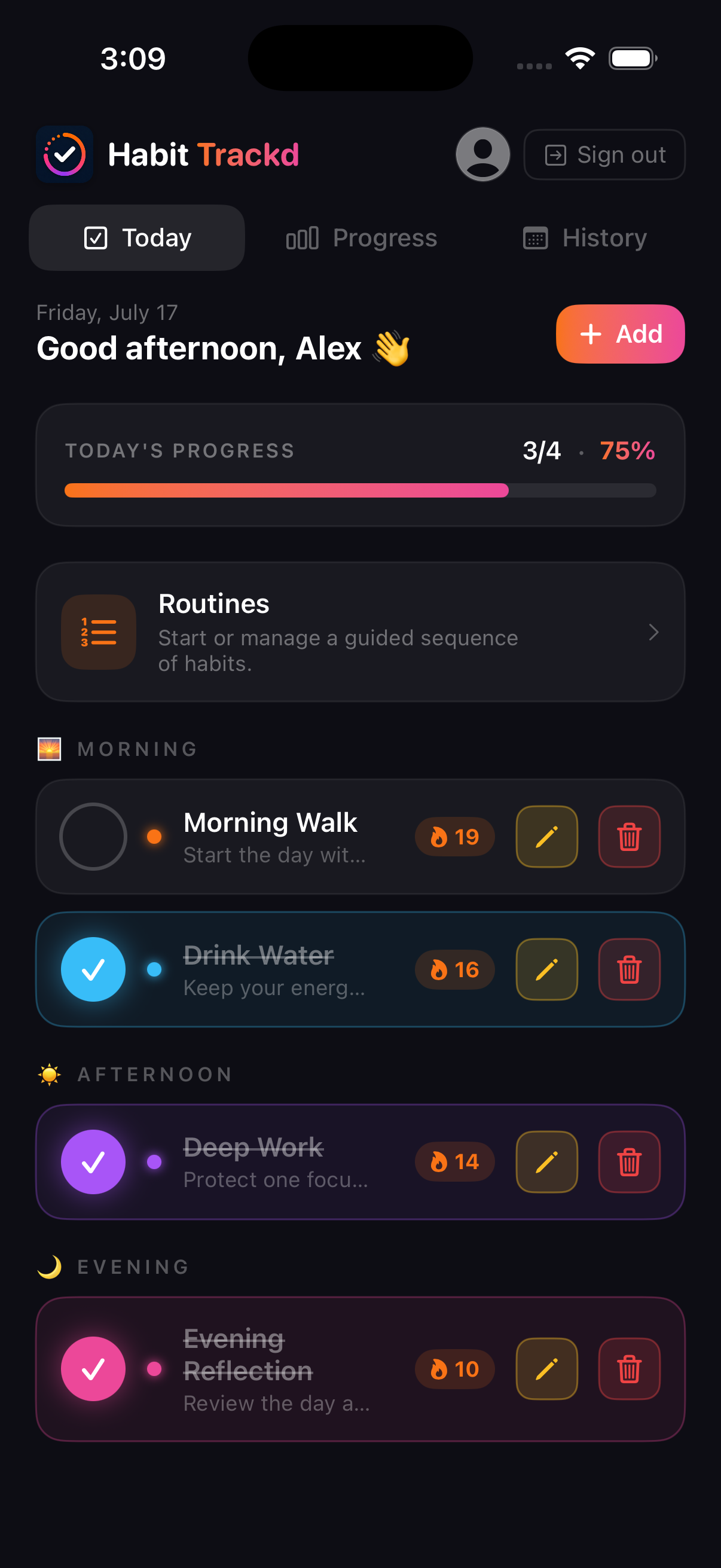
Today
This is the main action screen. It answers one question: what needs your attention today?
What You Are Seeing
- Today’s Progress: The example shows 3 of 4 habits completed, which produces the 75% progress bar. It updates as today’s due check-ins are completed or reopened.
- Routines: Open this card to start a guided routine or manage existing routines. Routine steps still update their linked habits.
- Time Sections: Due habits are organised into Morning, Afternoon and Evening so the full day is easier to scan.
- Completion Control: An empty circle means the habit is still due. A filled circle with a check mark means it has been completed. A habit with several daily times fills progressively until every occurrence is complete.
- Streak: The flame number shows the current schedule-aware streak. Days when the habit was not due do not count as missed days.
- Edit And Remove: The yellow button opens the habit for editing. The red button begins the archive or removal flow and requires confirmation where appropriate.
- Add: Use Add to create a new habit. Its area, frequency, days, times, duration, reminder and calendar privacy are chosen during setup.
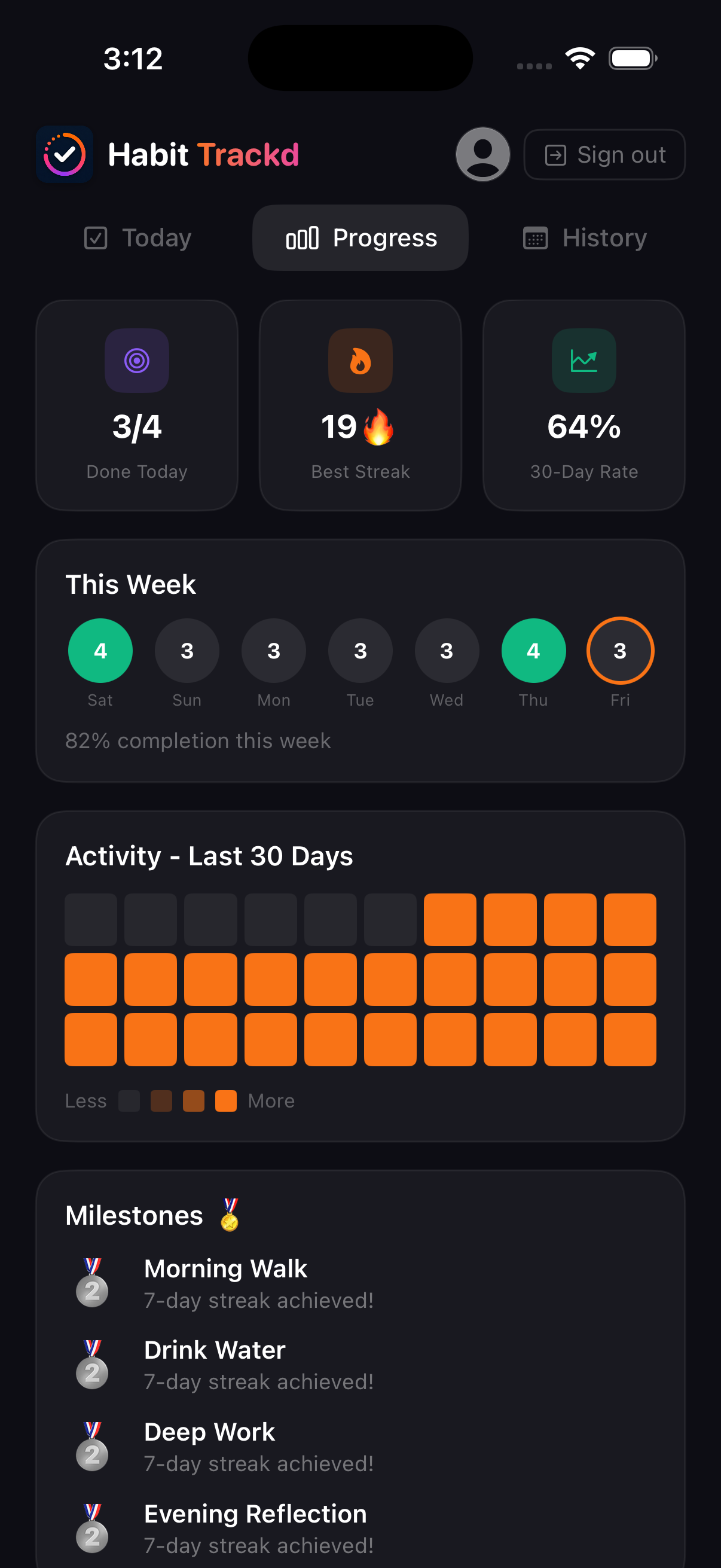
Progress
Progress turns individual check-ins into a quick overview of consistency. It is designed to show direction without treating every calendar day as identical.
What You Are Seeing
- Done Today: The number of completed check-ins compared with everything currently due today.
- Best Streak: The longest schedule-aware streak achieved by any tracked habit.
- 30-Day Rate: The percentage of scheduled check-ins completed during the last 30 days. Unscheduled days are excluded.
- This Week: Each day shows the number of completed check-ins. The weekly percentage compares completed check-ins with those that were actually scheduled.
- Activity Grid: Each square represents a day. Stronger colour means more recorded activity, while a dark square means little or no completed activity.
- Milestones: Habit Trackd highlights streak achievements so users can see which habits have reached meaningful consistency points.
Progress figures can change when a past check-in is corrected or when a habit with existing history is permanently deleted.
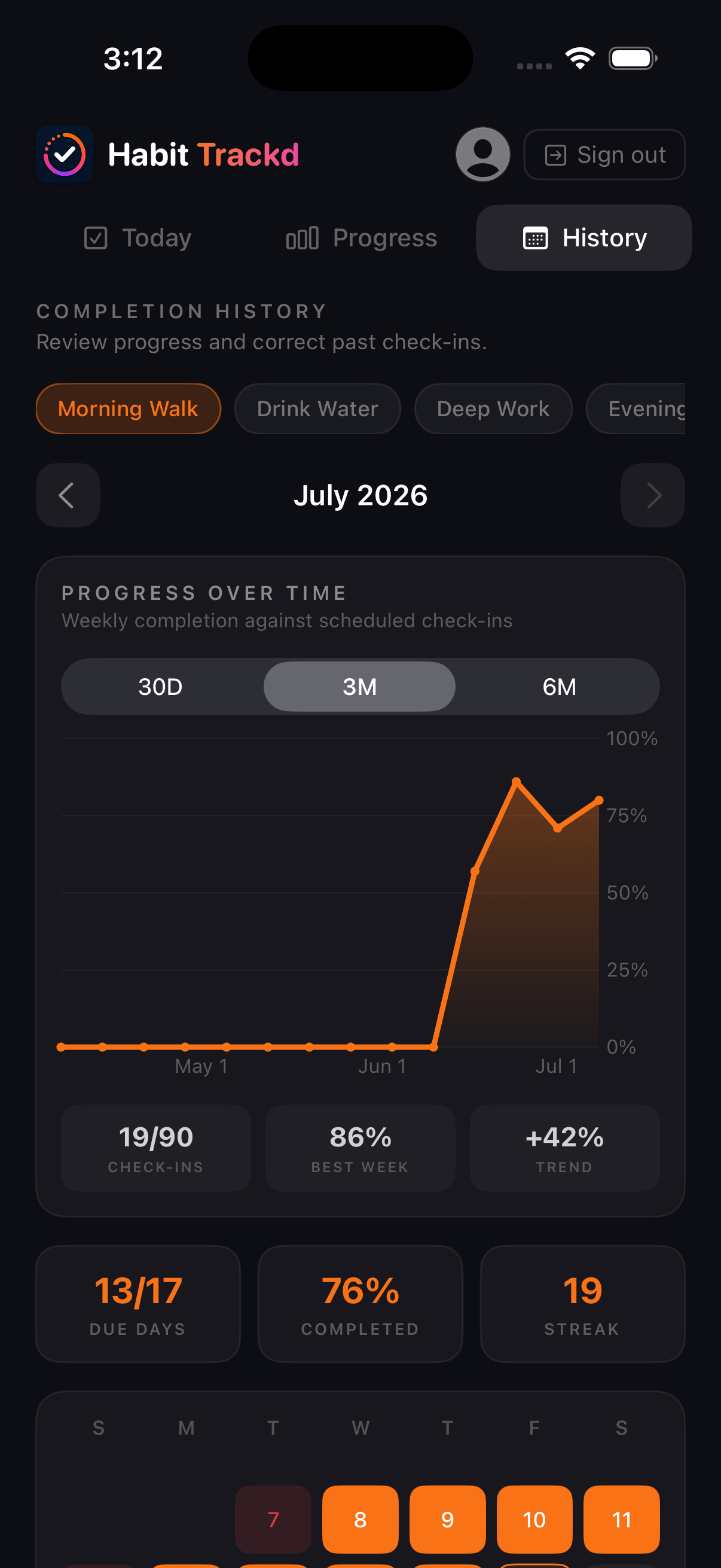
History
History is where you inspect one habit in detail, review its longer-term pattern and correct check-ins that no longer reflect what happened.
What You Are Seeing
- Habit Selector: Choose the habit whose history you want to review. Every chart and statistic below changes to the selected habit.
- Month Navigation: Use the arrows to move through available months and inspect earlier records.
- Progress Range: Switch between 30 days, 3 months and 6 months. The line chart compares completed check-ins with check-ins that were scheduled.
- Check-Ins: The completed total is shown against the number scheduled in the selected period.
- Best Week And Trend: Best Week shows the strongest weekly completion rate. Trend shows whether recent performance is moving up or down compared with the earlier part of the selected range.
- Due Days: This distinguishes days when the habit was scheduled from calendar days when it was not required.
- Completed And Streak: Completed is the selected habit’s completion rate. Streak shows its current consecutive run based on its actual schedule.
- Calendar: Select a date to inspect or correct its check-in. Complete, partial, missed and not-due days use different states. Habits with several daily times retain each occurrence separately.
Apple And Google Calendar Sync
Apple Calendar
Connect it in Account Settings and grant iOS calendar permission. Habit Trackd creates, updates and removes its scheduled habit events.
Google Calendar
Connect through Google’s consent screen. If the connection expires, reconnect when Habit Trackd prompts you.
Using Both
When both providers are enabled, a habit can sync to both. Saving an existing habit updates its stored events instead of intentionally creating repeated copies.
Conflicts And Privacy
Conflict suggestions help when creating or moving a habit. The habit’s own event is excluded while editing. Turn on Keep Private to keep a habit inside the app and off connected calendars. A lock icon identifies it.
Notifications, Sounds And Alarms
Habit Reminders
Turn on reminders inside the habit. Habit Trackd sends standard iPhone notifications according to the schedule. Check iPhone notification permission, Focus and Scheduled Summary if one does not appear.
Alert Sounds
Each timed habit can use Default, the expanded built-in sound library, or an imported CAF, WAV or AIFF file up to 30 seconds long. The Alert sound control includes sound and vibration previews. The selected sound is used for a standard notification or an AlarmKit alarm.
Vibration
iOS controls notification and locked-screen alarm vibration through the iPhone’s Sounds & Haptics and notification settings. Habit Trackd cannot replace those system settings with its own notification vibration pattern.
Alarm Mode
On supported iPhones, Alarm mode uses Apple AlarmKit and continues until dismissed instead of behaving like a standard notification.
Email reminders are optional. When enabled, they are sent to the verified account email. Delivery can be delayed or filtered by the email provider.
Do not use Habit Trackd as the only reminder for medication, emergencies or safety-critical actions.
Imports, Exports And Full Backups
Exports
Export habits or check-in history as CSV or JSON. CSV suits spreadsheets. JSON preserves supported structured settings. Files include the correct extension and can be saved, shared or emailed.
Full Backup
A full JSON backup contains supported habits, routines, combined-routine order, goals and their relationships.
Import
Choose the matching import option and review the confirmation. Habit Trackd validates the file and avoids importing matching records repeatedly. Individual routines are restored before any combined routine that contains them. Successful, non-private scheduled imports can sync to connected calendars.
Format Guide
Open CSV And JSON Format Guide in Account Settings for required fields, accepted values, day numbering, slot syntax and examples.
Profile Images
Open Account Settings to choose, replace or remove a profile image. It is stored with your account and appears in supported account and navigation areas after the profile refreshes.
Free And Pro Limits
Beta Tester Access
TestFlight builds temporarily unlock the full feature set for beta testing. Testers do not need to purchase or restore a subscription.
Free
Free supports up to 2 active habits, 1 routine and 1 active goal, with basic reminders and 7 days of history.
Habit Trackd Pro
Pro unlocks unlimited habits, routines and goals, calendar sync, advanced schedules, full history, imports, exports and full backups.
Purchase And Restore
Choose Monthly or Yearly and confirm with Apple. Apple shows the final local price. If you previously purchased with the same Apple Account, tap Restore Purchases. Apple manages billing and cancellation.
Offline Check-Ins
Saved habits remain available when the connection drops. Check-ins queue on the device and sync when connectivity returns. Reopen the app while online to let queued changes finish.
Bug Reports And Feature Requests
Use Support inside the app or the website Support page. Select Bug Report, Feature Request or General Help. In-app reports include the app version, build, iOS version, iPhone model, client and current screen.
Never include your password, recovery code or payment information.
Account, Face ID And Privacy
Optional App Lock
Turn on Require Face ID to open app in Account Settings. Habit Trackd locks after leaving the foreground and uses Face ID, with the device passcode available as a fallback.
Account Controls
Account Settings lets you update your profile, change your password, manage calendar connections, export data or permanently delete the account. Deletion removes the live account and synced service data and cannot be undone.
Deleting the account does not cancel an Apple subscription. Cancel that separately in Apple subscription settings. Read the Privacy Policy and Privacy Choices for full details.
No help topics match that search. Try a shorter word or contact support.
Still Need Help?
Send a bug report, request a feature or ask a general question.